Excel timestamp -> datetime
nguyennamdsn | March 3, 2024, 6:25 a.m.
The timestamp is widely used to record and analyze time-based information, such as financial transactions, online meetings, and event logs. However, dealing with raw timestamp data can be challenging without proper formatting. That’s where Excel comes in handy. Excel enables you to convert timestamps into easily readable time formats. In short, we can use Excel to convert timestamp to time.
Download Practice Workbook
You can download this practice book while going through the article.
Excel to Convert Timestamp to Time: 4 Easy Methods
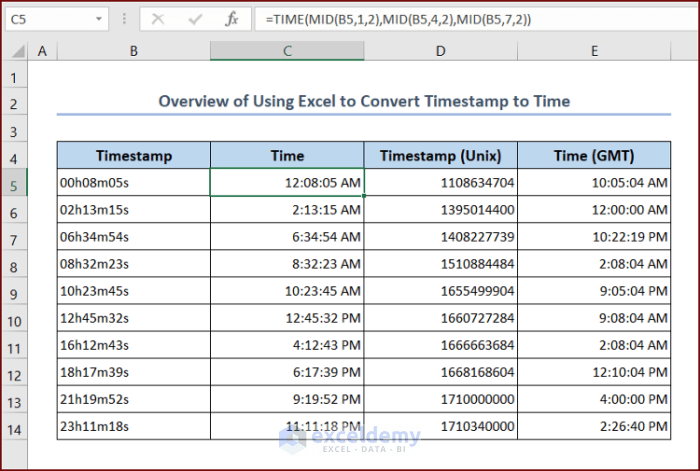
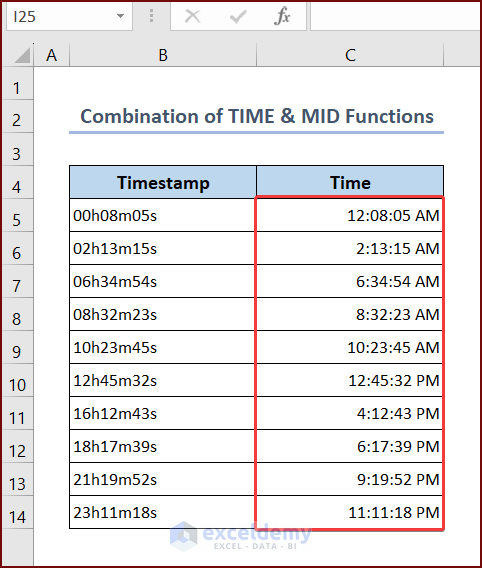
We can use Excel to convert timestamp to time. We have discussed 4 methods in this article. Different Excel functions and features are used to convert timestamp to time. We have converted Unix, UTC, and other timestamp formats into time in Excel. We have used the below image initially to convert timestamp to time.
1. Convert Timestamp to Time Using Combination of TIME and MID Functions
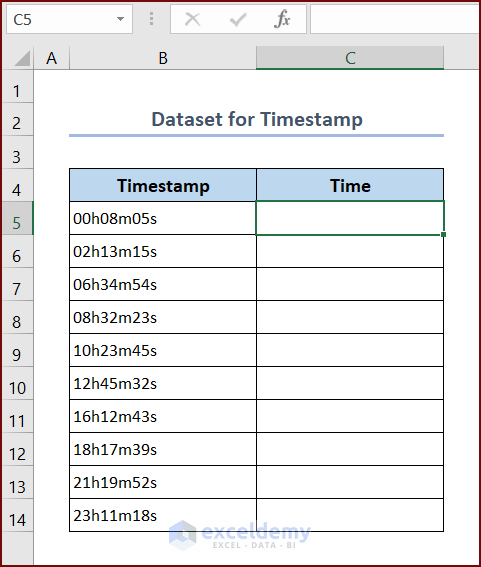
We can use the combination of Excel TIME and MID functions to convert timestamp to time. In the dataset, we have text timestamps of 9 digits. The first two digits represent hours, the 4th and 5th digits represent minutes, and the 7th and 8th digits represent seconds. Follow the steps below to convert the timestamps to time.
- Select cell C5 and enter the formula into the cell.
=TIME(MID(B5,1,2),MID(B5,4,2),MID(B5,7,2))- Use Fill Handle to Autofill data in range C6:C14.

Formula Breakdown
- MID(B5,1,2),MID(B5,4,2),MID(B5,7,2)
The MID function extracts portions of the text string in cell B5 based on character position from the 2nd argument and number of characters based on the 3rd argument. MID(B5,1,2) extracts the hour component (00), MID(B5,4,2) extracts the minute component (08), and MID(B5,7,2) extracts the second component (05) from the timestamp.
- TIME(MID(B5,1,2),MID(B5,4,2),MID(B5,7,2))
The outputs from the MID functions are directly fed to the Time function as arguments.
Result: 12:08 AM
- Select range C5:C14 and change the Number format to Time.
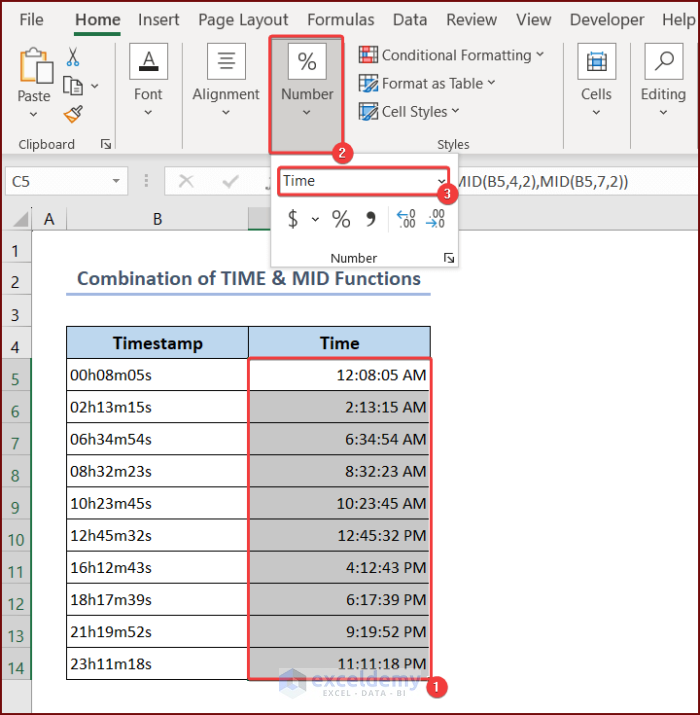
- Now, you will see the conversion of timestamps (range B5:B14) to time in range C5:C14.
2. Combine Excel TIME, MID, RIGHT & LEFT Functions to Convert Timestamp to Time
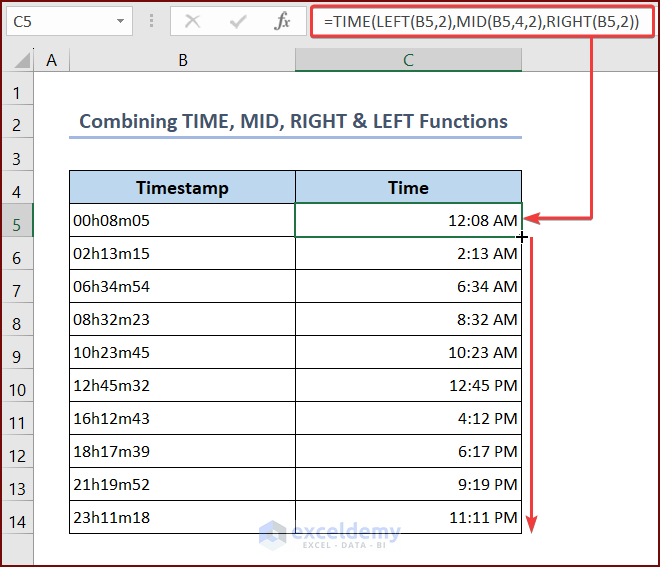
We can combine Excel TIME, MID, RIGHT, and LEFT functions to convert timestamp to time. Simply follow the steps below to convert the timestamps to time.
- Select cell C5 and enter the formula into the cell.
=TIME(LEFT(B5,2),MID(B5,4,2),RIGHT(B5,2))- Use Fill Handle to Autofill data from range C6:C14.
Formula Breakdown
- LEFT(B5,2)
The LEFT function extracts two components from the left or start of cell B5.
Result: 00
- MID(B5,4,2)
The MID function extracts two-minute components from the fourth position.
Result: 08
- RIGHT(B5,2)
The Right function extracts two components from the right end of cell B5.
Result: 05
- TIME(LEFT(B5,2),MID(B5,4,2),RIGHT(B5,2))
The outputs of LEFT, MID and RIGHT functions are directly fed to the Time function as arguments.
Result: 12:08 AM
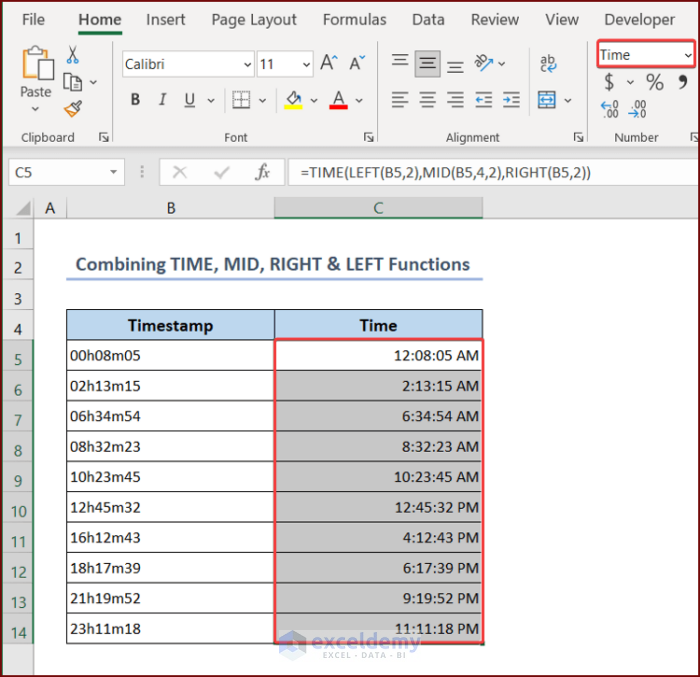
- Select range C5:C14 and change the Number format to Time.
- Now you will see the conversion of timestamps (range B5:B14) to time in range C5:C14.
3. Use Excel to Convert Unix Timestamp to Time
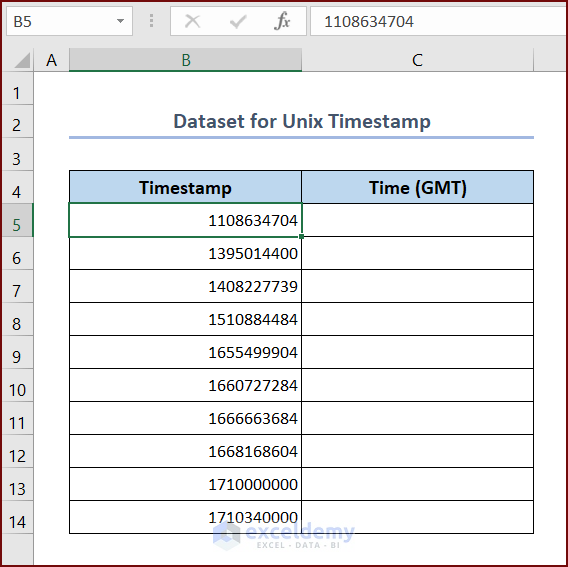
The Unix timestamp indicates how much time has passed since January 1, 1970 (epoch time). The timestamp can be expressed in both seconds and milliseconds. The timestamp will have 10 digits when it is in seconds. On the other hand, the timestamp will have 13 digits when it is in milliseconds. Here in the dataset, we have 10-digit timestamps (in seconds). We will use Excel to convert the Unix timestamp to the time in the GMT time zone.
3.1. Excel DATE Function to Convert Unix Timestamp to Time
We can use the DATE function to convert Unix timestamp to time. Just follow the steps below to convert the timestamps to time.
- Select cell C5 and enter the formula into the cell.
=(B5/86400)+DATE(1970,1,1)- Use Fill Handle to Autofill data from range C6:C14.
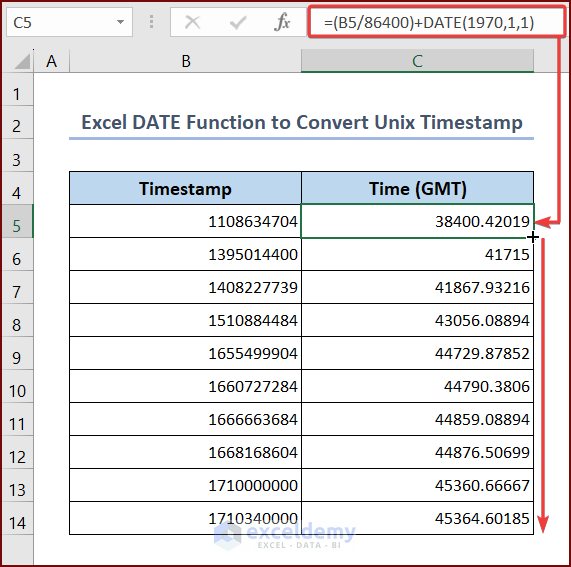
Formula Breakdown
- (B5/86400)
This formula divides the value of cell B5 by 86400 (the number of seconds in a day).
Result: 12831.42019
- DATE(1970,1,1)
This portion of the formula gets a number that represents the date January 1, 1970.
Result: 01-01-1970
- (B5/86400)+DATE(1970,1,1)
This formula calculates the number of days since January 1, 1970.
Result: 38400.42019
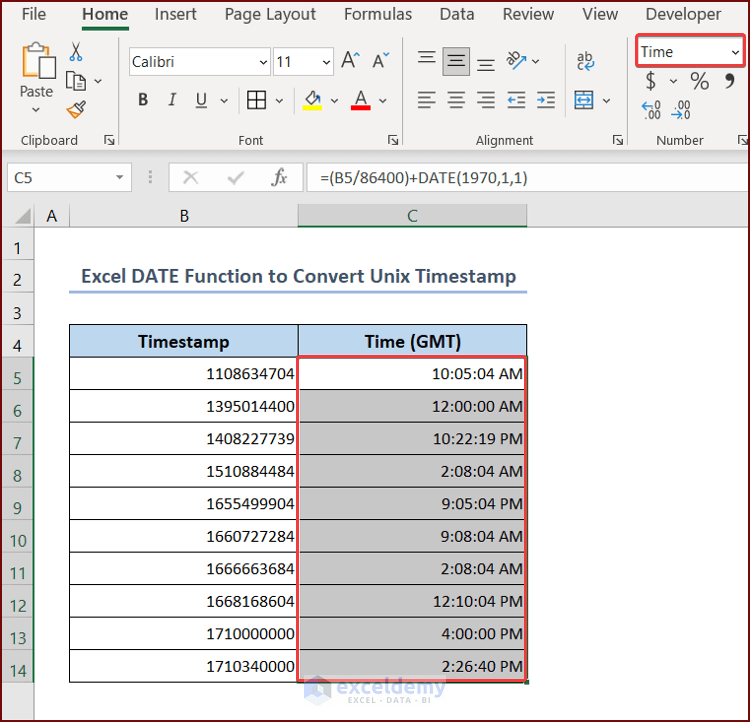
- Select range C5:C14 and change the Number format to Time.
- Now you will see the conversion of Unix timestamps (range B5:B14) to time in range C5:C14.
3.2. Apply the CONVERT Function in Excel to Convert Unix Timestamp to Time
We can use the CONVERT function to convert Unix timestamp to time. You need to follow the steps below.
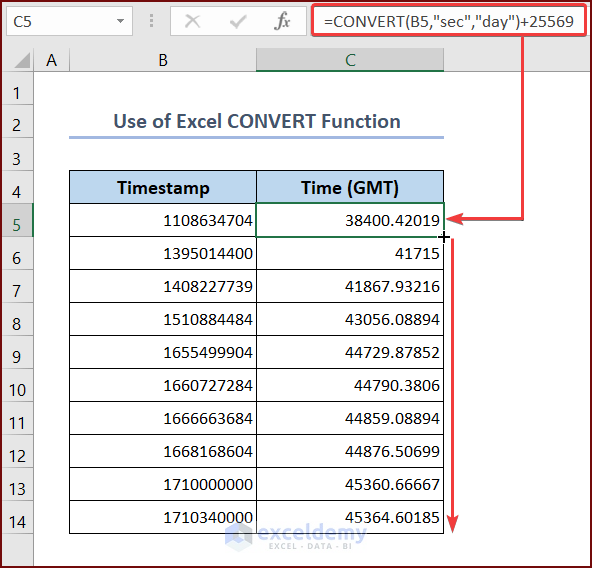
- Select cell C5 and enter the formula into the cell.
=CONVERT(B5,"sec","day")+25569- Use Fill Handle to Autofill data from range C6:C14.
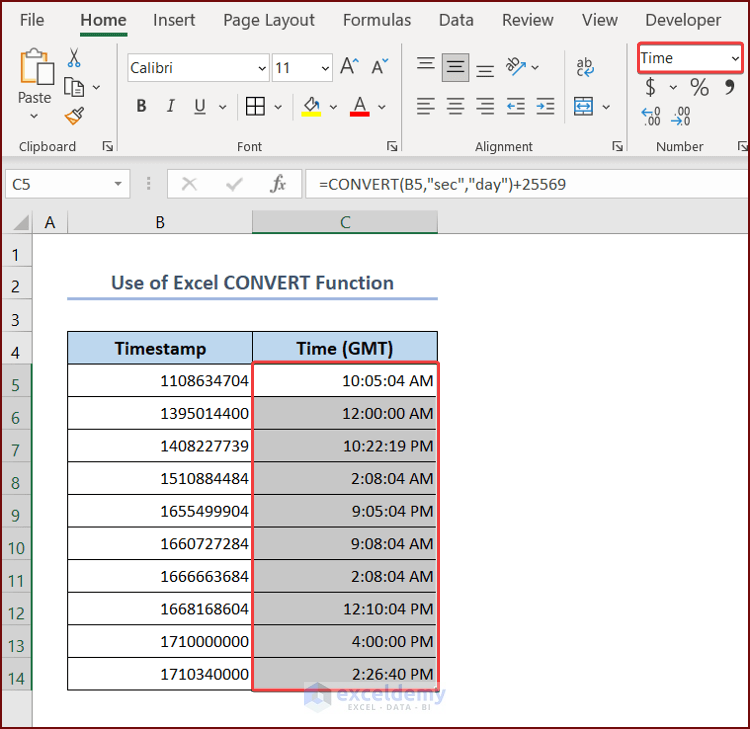
- Select range C5:C14 and change the Number format to Time.
- Now you will see the conversion of Unix timestamps (range B5:B14) to time in range C5:C14.
3.3. Apply VBA in Excel to Convert Unix Timestamp to Time
We can apply Excel VBA to convert Unix timestamp to time. Simply follow the steps below.
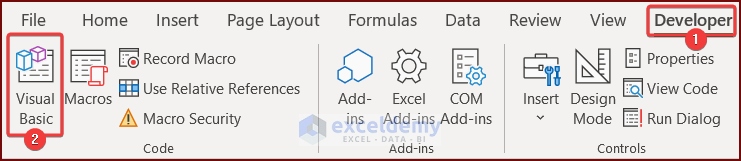
- First, you have to launch the VBA macro editor from your workbook. You may Follow this article: How to Write VBA Code in Excel or go to the Developer tab >> Visual Basic.
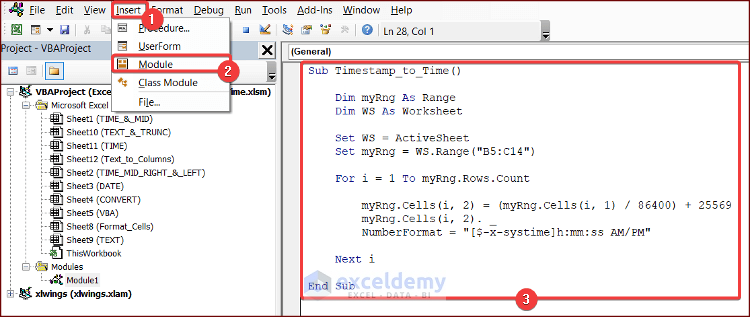
- Go to Insert >> Module.
- Paste the following code in your VBA Macro Editor.
VBA Breakdown
- This line defines a new subroutine called Timestamp_to_Time.
- Two variables are declared. myRng is a variable of type Range and WS is a Worksheet type variable.
- This line assigns the active worksheet to the variable WS.
- This line assigns the range B5:C14 to the variable myRng.
- A For loop is initiated. Within the loop, the value in the cell at the i-th row and the 1st column of myRng is divided by 86400 (the number of seconds in a day). This division converts the timestamp value to a decimal representation of the date and time. The decimal representation is then added to 25569, which corresponds to the date serial number for January 1, 1970, in Excel’s date system. The resulting value is assigned back to the cell at the i-th row and the 2nd column of myRng, effectively converting the timestamp to a date and time value. The NumberFormat property of the cell is set to “[$-x-systime]h:mm:ss AM/PM” to format the time as “hour:minute:second AM/PM“.
- This line ends the subroutine.
- Press the Run button or F5 key to run the code.
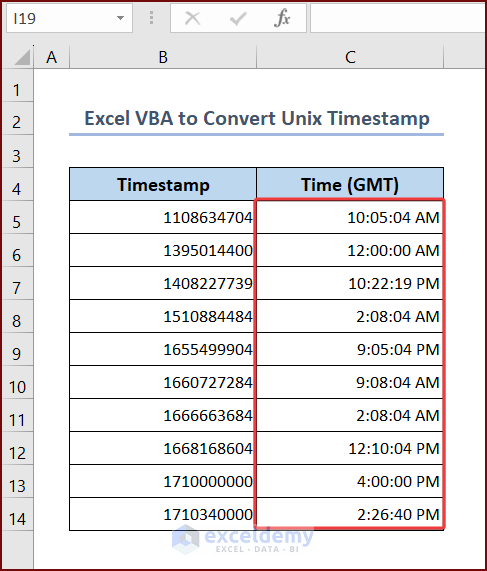
- After running the code, you will see the conversion of Unix timestamps (range B5:B14) to time in range C5:C14.
4. Use Excel Ribbon Options to Convert UTC Timestamp to Time
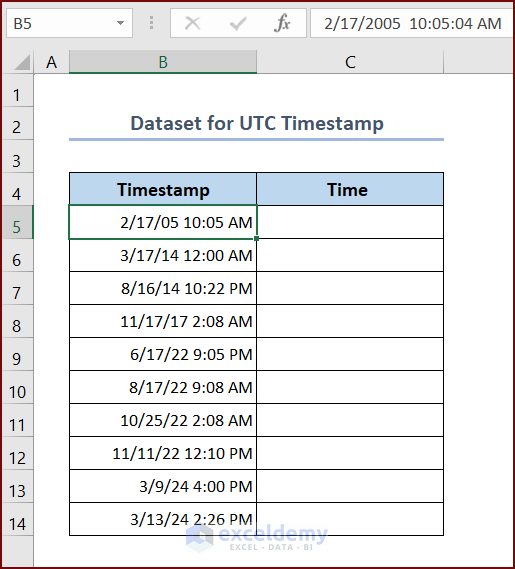
We can use Excel to convert UTC timestamp to time. Here in the dataset, we have multiple UTC timestamps. We will use different Excel functions and formulas to convert them into time.
4.1. Use Format Cells Option in Excel to Convert UTC Timestamp to Time
We can use the Format Cells option in Excel to convert UTC timestamp to time. Follow these steps.
- Select cell C5 and enter the formula into the cell.
=B5- Use Fill Handle to Autofill data from range C6:C14.
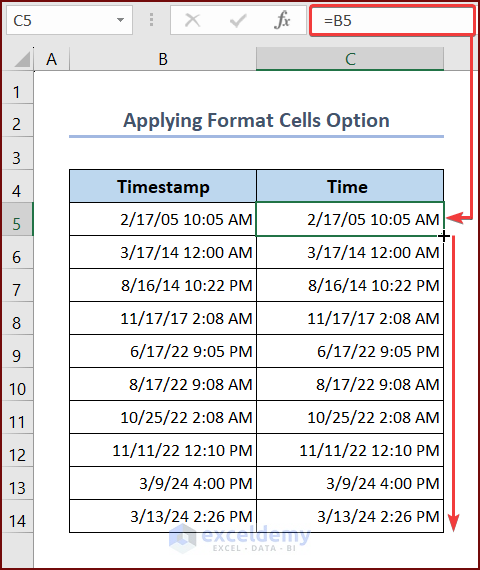
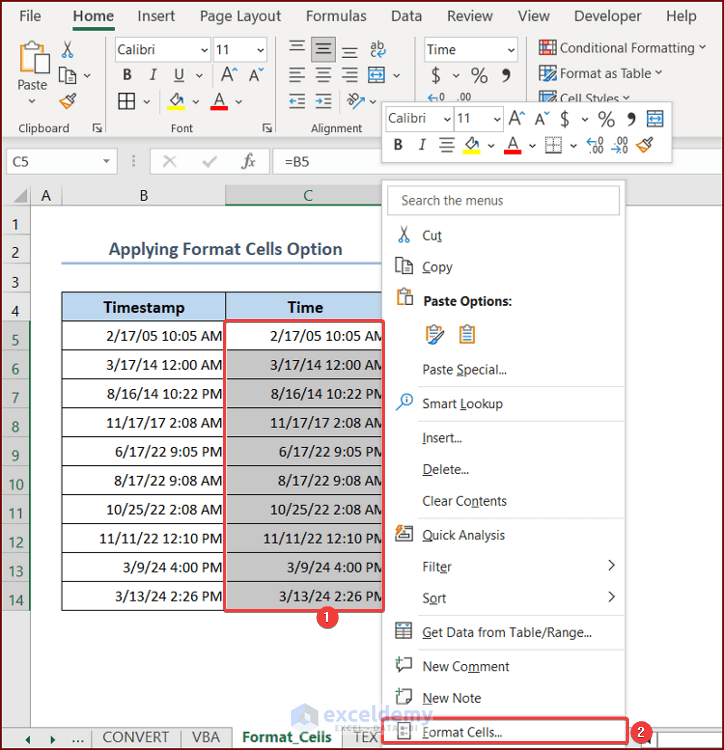
- Select range C5:C14 and right-click.
- Click the Format Cells option from the Context Menu.
Note:
You can also use keyboard shortcut Ctrl + 1 to avail Format Cells window.
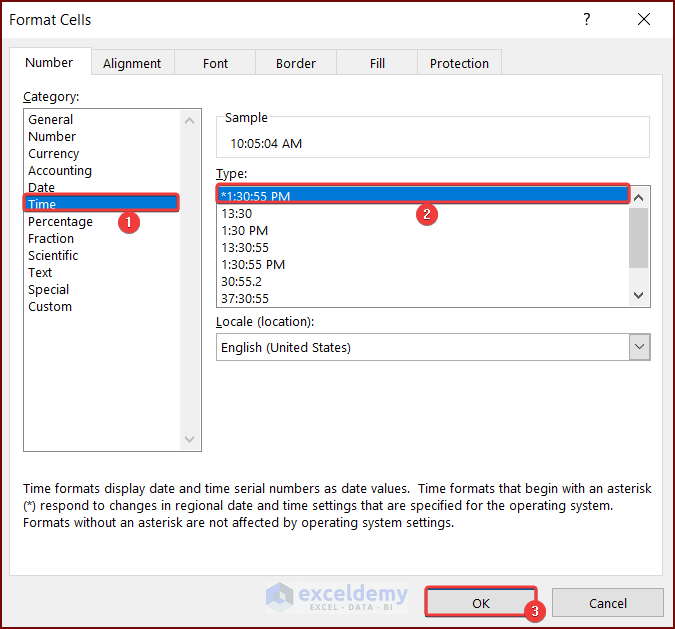
- Choose the appropriate time format from the Number tab of Format Cells window and press OK.
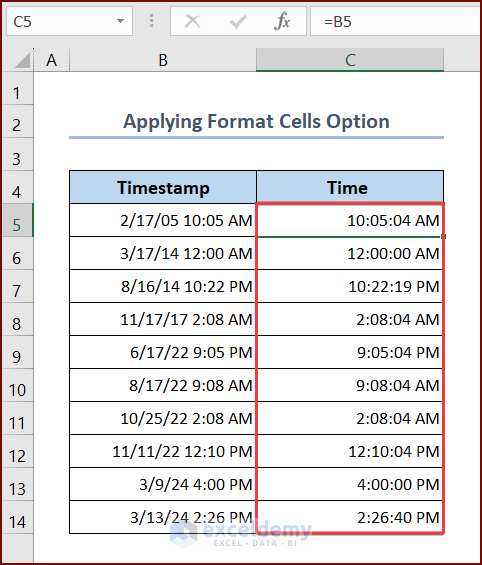
- Now you will see the UTC timestamp converted into time in range C5:C14.
4.2. Apply Excel TEXT Function to Convert UTC Timestamp to Time
We can use the TEXT function to convert UTC timestamp to time. Just follow the steps below.
- Select cell C5 and enter the formula into the cell.
=TEXT(B5,"h:mm:ss AM/PM")- Use Fill Handle to Autofill data from range C6:C14.
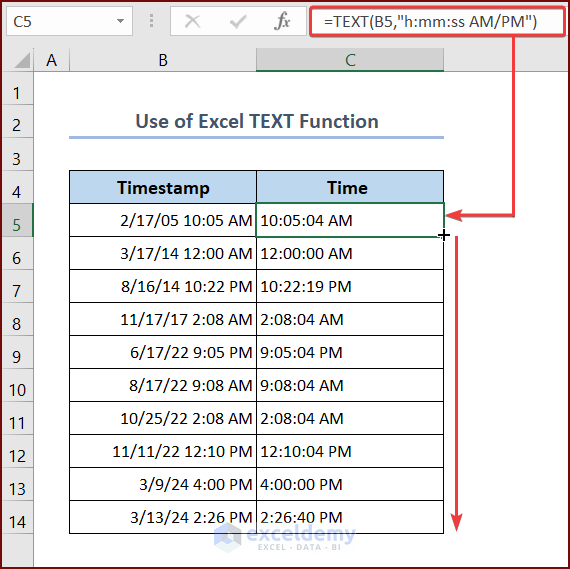
Now you will see the conversion of UTC timestamps (range B5:B14) to time in range C5:C14.
4.3. Combine Excel TEXT and TRUNC Functions to Convert UTC Timestamp to Time
We can combine Excel TEXT and TRUNC functions to convert UTC timestamp to time. Follow the steps below.
- Select cell C5 and enter the formula into the cell.
=TEXT(B5-TRUNC(B5), "hh:mm:ss AM/PM")- Use Fill Handle to Autofill data from range C6:C14.
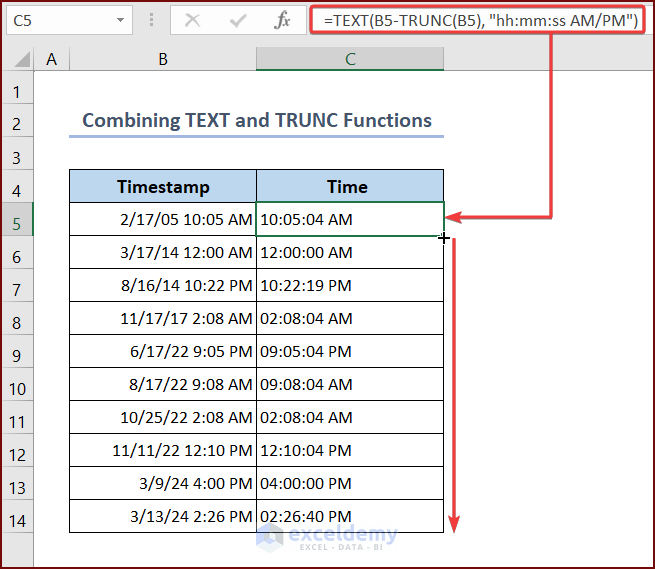
Formula Breakdown
- TRUNC(B5)
This portion of the formula removes the decimal part of the value in cell B5, leaving only the date portion.
Result: 2-17-05 12:00 AM
- B5-TRUNC(B5)
This subtracts the date portion from the original value in cell B5, leaving only the time portion.
Result: 0.420185185
- TEXT(B5-TRUNC(B5), “hh:mm:ss AM/PM”)
This formula formats the time portion. The “hh” represents hours in 12-hour format, “mm” represents the minutes, and the “ss” represents the seconds. “AM” or “PM” represents the time period.
Result: 10:05:04 AM
You can see the conversion of UTC timestamps (range B5:B14) to time in range C5:C14.
4.4. Apply Excel TIME with HOUR, MINUTE & SECOND Functions to Convert UTC Timestamp to Time
We can apply the Excel TIME function with HOUR, MINUTE, and SECOND functions to convert UTC timestamps to time. Simply follow the steps below.
- Select cell C5 and enter the formula into the cell.
=TIME(HOUR(B5), MINUTE(B5), SECOND(B5))- Use Fill Handle to Autofill data from range C6:C14.
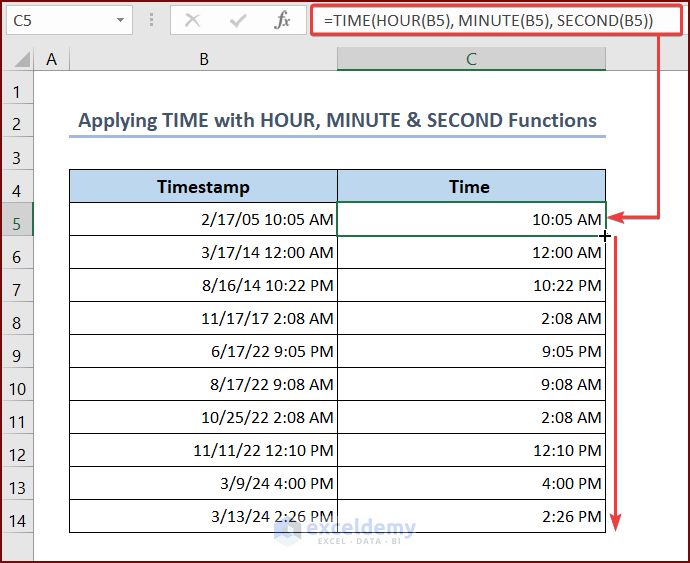
Formula Breakdown
- HOUR(B5)
The HOUR function is used to extract the hour component from the time value in cell B5.
Result: 10
- MINUTE(B5)
The MINUTE function is used to extract the minute component from the time value in cell B5.
Result: 05
- SECOND(B5)
The SECOND function is used to extract the second component from the time value in cell B5.
Result: 04
- TIME(HOUR(B5), MINUTE(B5), SECOND(B5))
The TIME function takes the extracted hour, minute, and second values as arguments and creates a new time value.
Result: 10:05 AM
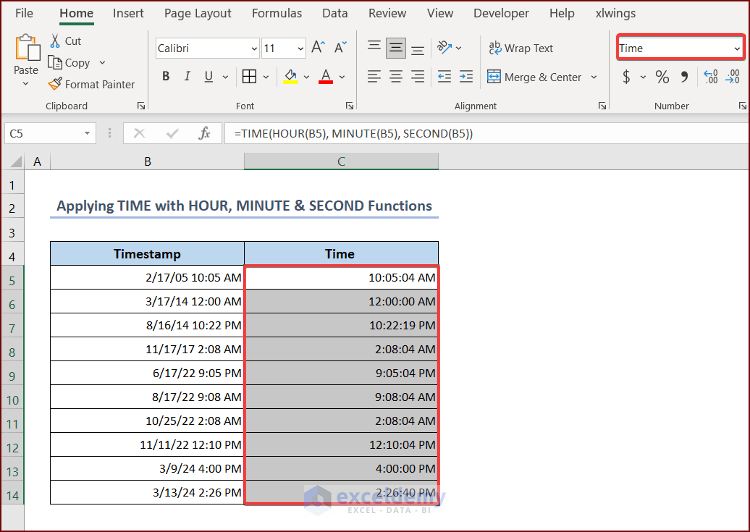
- Select range C5:C14 and change the Number format to Time.
- Now you will see the conversion of UTC timestamps (range B5:B14) to time in range C5:C14.
4.5. Apply Text to Columns Wizard in Excel to Convert UTC Timestamp to Time
We can apply Text to Columns wizard in Excel to convert UTC timestamp to time. For this method, we have used a 24 hour format UTC timestamp.
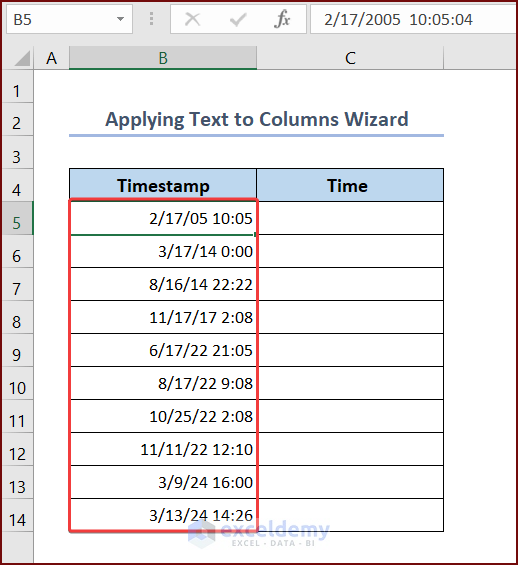
Follow the steps below.
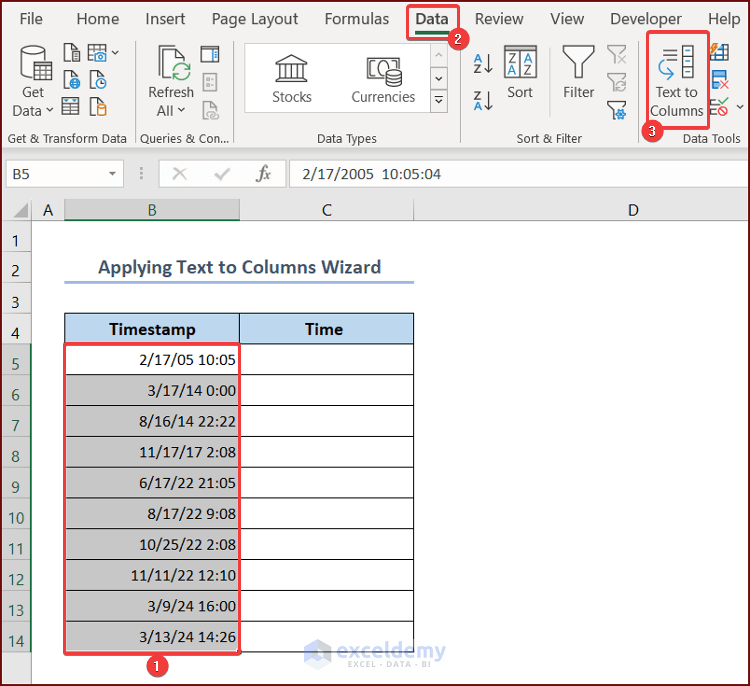
- First, select range B5:B14 and go to the Data tab.
- Click on Text to Columns options.
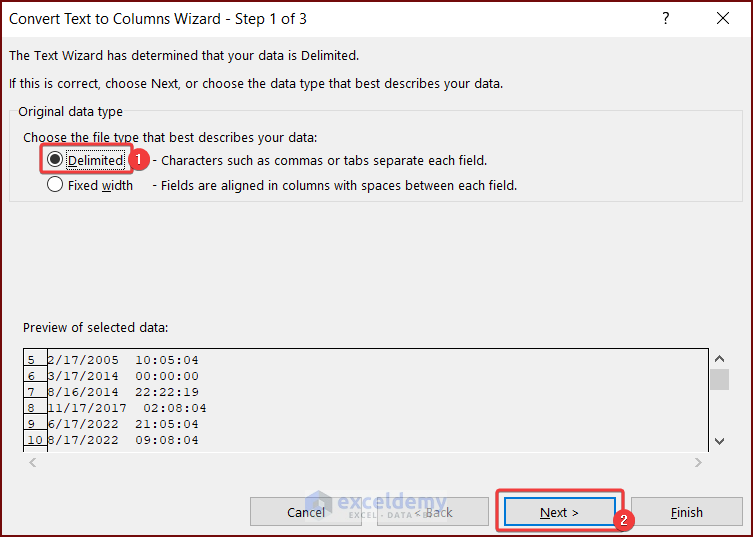
- In Step 1 of 3, choose the Delimited option and press Next.
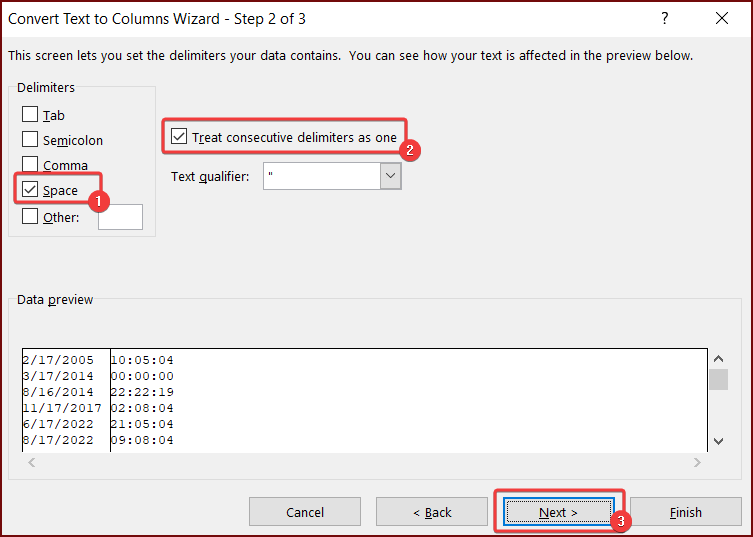
- In Step 2 of 3, select Space and Treat consecutive delimiters as one option.
- Then, press Next.
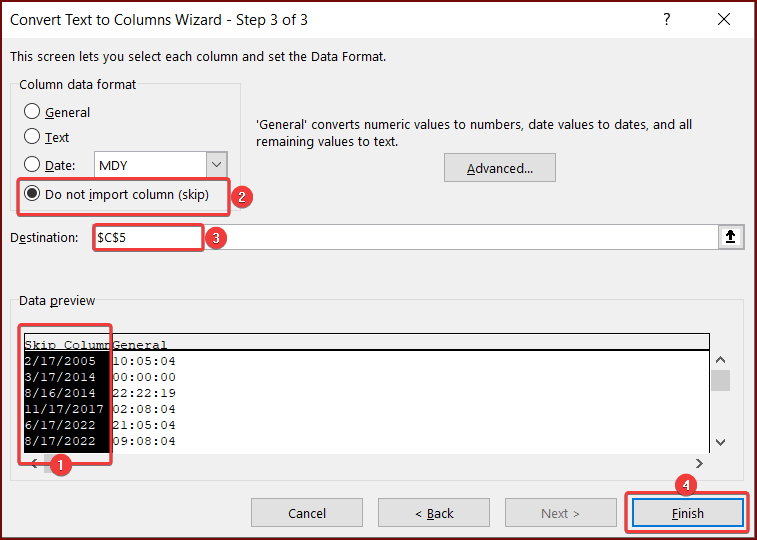
- In Step 3 of 3, for the first column, select the Do not import column (skip) and set the Destination to cell C5. Then, press Finish.
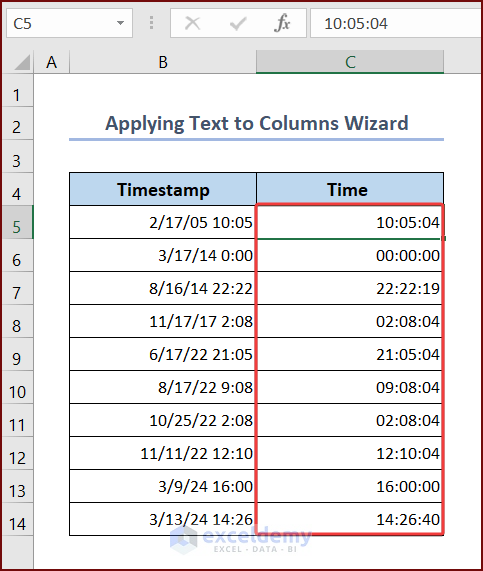
- Now, you will see the output time in the range C5:C14.
Note:
You should change the time in your pc into a 24-hour format to get accurate results.
Convert 13 Digit Timestamp to Date and Time in Excel
The Unix timestamp can be of 13-digits when it is expressed in milliseconds. Here in the dataset, we have 13-digit Unix timestamps. We will use Excel DATE function to convert these 13-digit timestamps to date and time.
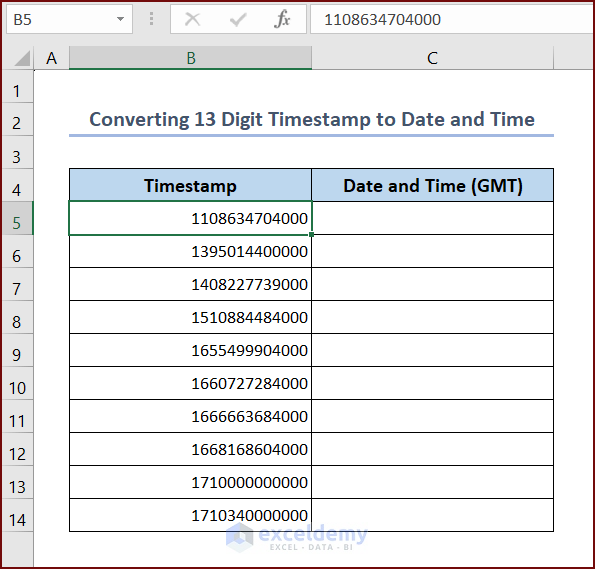
Follow the steps below.
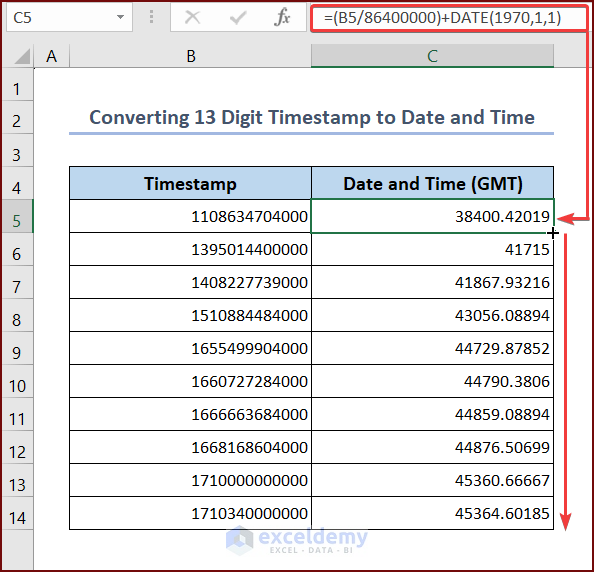
- Select cell C5 and enter the formula into the cell.
=(B5/86400000)+DATE(1970,1,1)- Use Fill Handle to Autofill data from range C6:C14.
Formula Breakdown
- (B5/86400000)
This divides the value of cell B5 by 86400000 (number of milliseconds in a day).
Result: 12831.42019
- DATE(1970,1,1)
This portion of the formula gets a number that represents the date January 1, 1970.
Result: 01-01-1970
- (B5/86400000)+DATE(1970,1,1)
This formula calculates the number of days since January 1, 1970.
Result: 38400.42019
- Select range C5:C14 and right-click.
- Click the Format Cells option from the Context Menu.
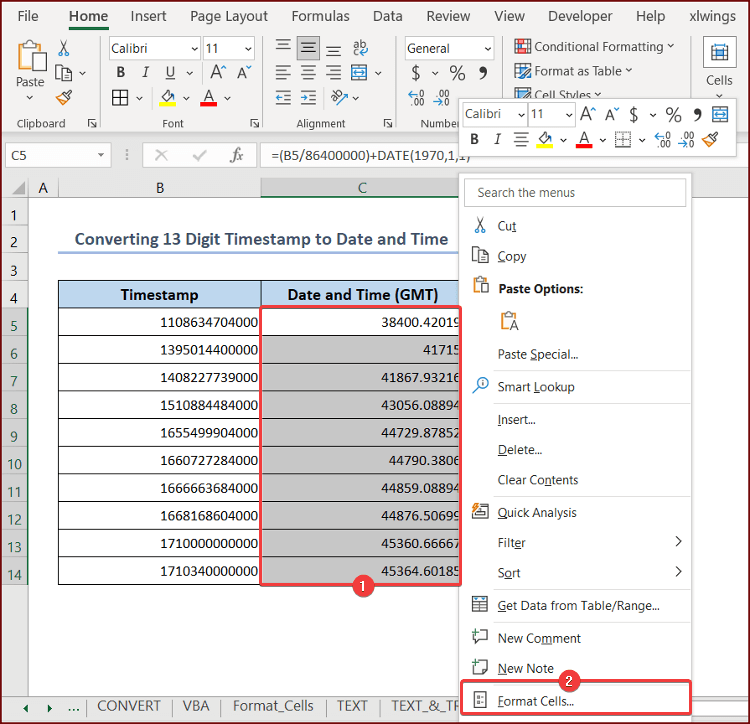
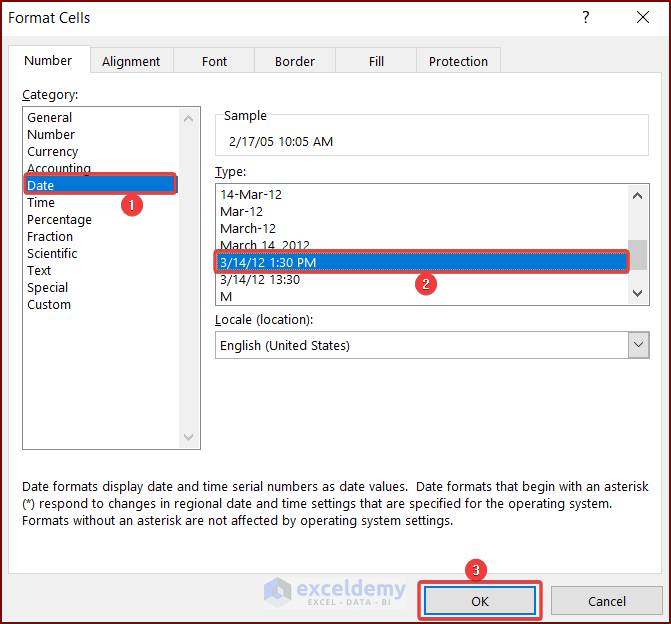
- Choose the appropriate date and time format and press OK.
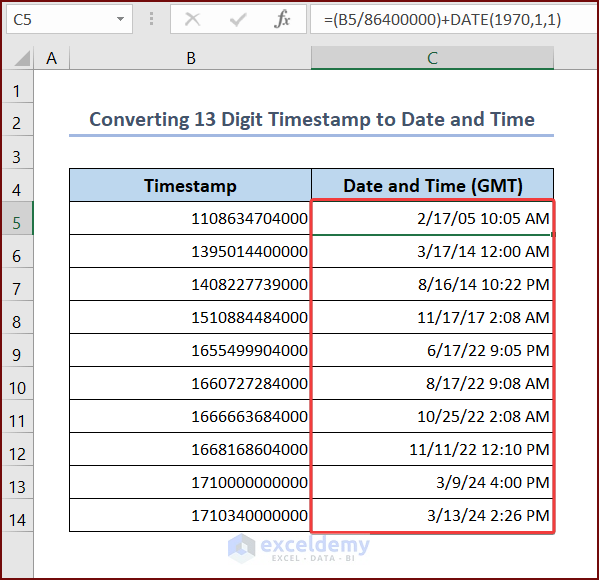
- Now you will see the conversion of 13-digit timestamps (range B5:B14) to date and time in range C5:C14.
=(C218740/1000 +25200)/86400+DATE(1970,1,1)
https://www.exceldemy.com/excel-convert-timestamp-to-time/